
An IRS mileage log needs the miles, date, destination, and business purpose of each business use, plus total annual miles and the date you first used the car for business. Those are the mileage items in Publication 463, Table 5-1, not a complete car-expense checklist. A GPS route can help with the record, but you still need to explain the work.
Start with the record, not the mileage total
Orphie records miles, dates, times, routes, and detected stops for shifts you start yourself. You choose the vehicle and who you drive for, then review the business purpose.
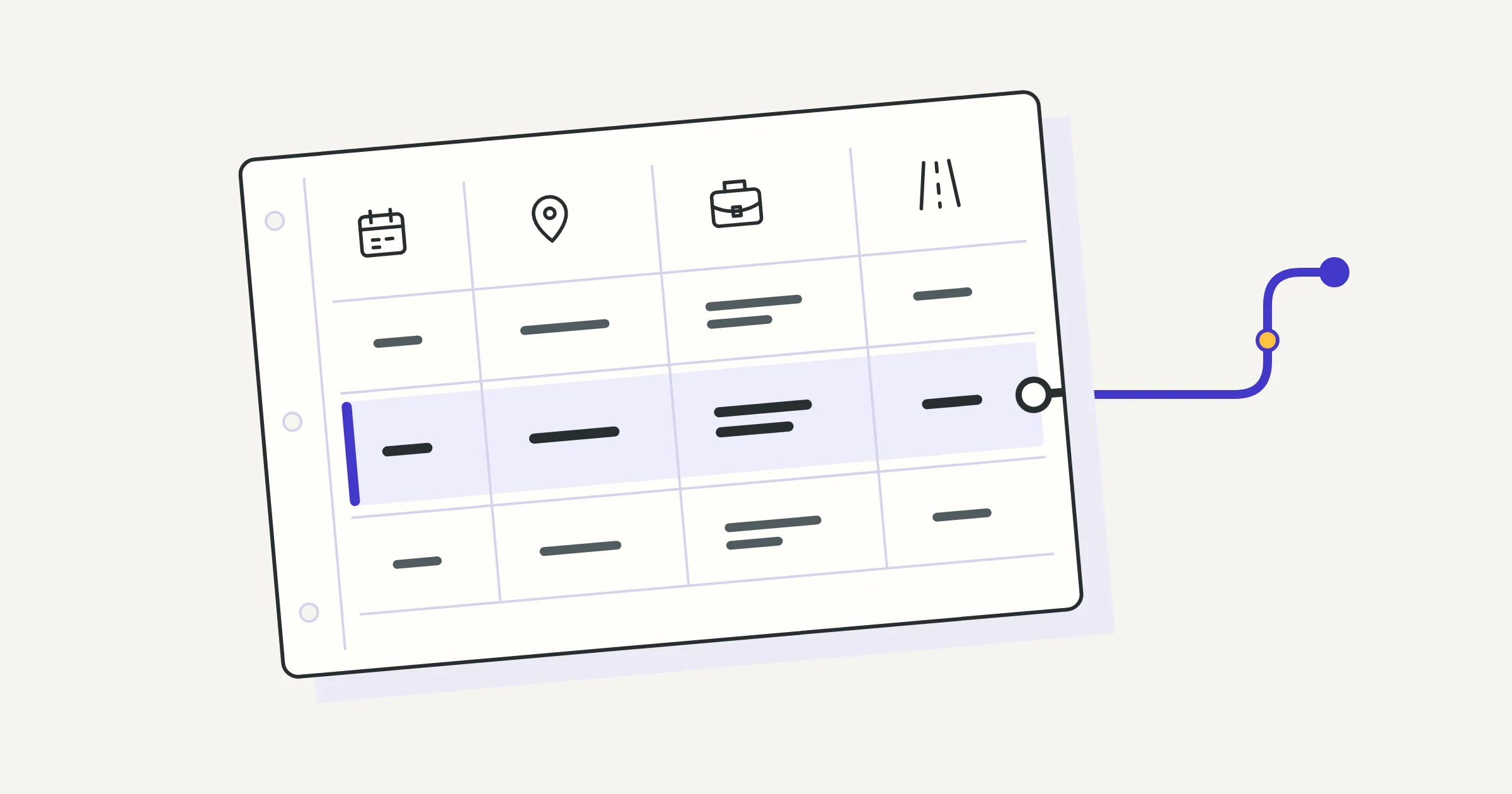
Use this table to separate the information a log can record from the information you supply. The IRS column comes from Table 5-1.
| Mileage record item | What Orphie keeps | What you add or review |
|---|---|---|
| Miles for each business use | A mileage total for each saved shift | Check the recorded driving and correct errors |
| Date of use | The shift’s date and times | Check dates on entries added by hand |
| Business destination | The recorded route and an editable business purpose | Add destination details; detected stops have no names |
| Business purpose | Who you drove for and the business purpose | Explain the work, rather than relying on the label alone |
| Total miles for the year | Vehicle odometer readings you enter | Record readings for the relevant period of use |
| Date first used for business | The vehicle’s in-service date | Enter the date yourself |
The same IRS table also lists the car’s cost and improvements. Keep those records where relevant; the mileage table above does not cover every car expense. See the full transportation row.
Make the business purpose useful to someone else
Read the saved business purpose as if you had not driven the shift. Can you tell where the work took place and what you were doing? Use plain destination and work details that match the drive. This is a practical way to review the destination and purpose items, not a required sentence template.
The names under Driving for are labels you select, not information checked with Amazon Flex, Uber, or DoorDash. Several labels can describe a shift, but the shift still has one mileage total. Orphie does not allocate miles between them.
Detected stops are a count and dots on a map. They are not named customers or delivery addresses. You can edit the count and business purpose and add an optional note. Put the explanation you want your preparer to read in the business purpose: the PDF and CSV from Taxes include it, but omit the separate note field.
City names in business purpose is off by default. If you turn it on, Orphie sends the shift’s start and end location to Apple on iPhone or Google on Android once after End to look up city and state names. That can add endpoints to the draft; it does not name every stop. Apple Maps and Google Maps also draw the native route map.
Review the drive while you remember it
A useful routine is to review after parking, before Save. Check the vehicle, who you drove for, the business purpose, and detected stops. If you review weekly, account for the week’s driving rather than copying a typical shift into blank days. These are suggested habits, not extra IRS requirements.
The logging controls are manual. Tap Start before the work you intend to record, Pause before personal driving, and Resume when you return. Location is off during Pause, with no miles or route recorded. Tap End when finished, then review and Save.
End and Save do different jobs. After End while recording, location can continue for up to 10 minutes or until the car has been parked for 2 continuous minutes, whichever comes first. Resume within that window keeps the extra stretch. Save preserves the End-time snapshot and discards the extra stretch. End from Pause leaves location off.
If you forgot Start, you can add a shift by hand. It stays permanently marked “Added by hand” and has no recorded route. Orphie cannot recover a drive it never recorded. Use the details you can support rather than inventing missing ones.
You can also edit a saved shift. Correcting GPS miles requires a reason and keeps the original GPS miles and correction history. The shift gets a “Miles corrected” label. Changes to hand-added mileage enter the history without requiring a reason.
Keep total driving separate from logged work
Do you need an odometer reading for every drive? The mileage items in Table 5-1 do not prescribe one. Table 5-2 includes odometer columns in a sample log, explicitly marked as not an official IRS form.
As a practical habit, record readings at the start and end of the car’s period of business use in the year. Use dates that fit when you began or stopped using that car. Schedule C, Part IV, asks about business, commuting, and other mileage; it does not prescribe those reading dates.
Enter the readings and in-service date in Orphie yourself. Taxes shows annual business miles per vehicle. Compare the same car and period, and investigate a mismatch instead of changing readings to make the totals fit.
Keep the files your preparer needs
In Taxes, Export PDF and Export CSV each make one file for the selected year. Both contain each shift’s business purpose and mileage. The PDF lists Schedule C, Part IV, lines 43 and 44a for each vehicle, but neither file is a completed IRS return. Orphie logs business miles only. It does not answer the evidence questions or count commuting or personal miles for you.
Settings › Export all data creates a separate all-years ZIP, including notes and complete correction histories. Choose it when you need those underlying records as well as the year’s PDF and CSV.
Records stay on your phone. Backup and restore is free in Settings. Back up now saves one file to a place you choose, such as iCloud Drive, Google Drive, or Files. You can restore from it later. See Back up and restore. An export is for reading and can’t restore your log, so keep copies of exports somewhere you can reach apart from the phone. For the wider recordkeeping reference, use the mileage log guide; for each control and export, see How it works.
This is general recordkeeping information, not tax advice. Ask a tax professional about your own return.